In-App Onboarding Wizard
Pre-requisite: The tenant has completed self-signup and payment. This doc covers what happens inside the Dashboard after the account is created.
Full Flow
Self-Signup + Payment (see self-signup.md)
    → Contract Acceptance Gate
        → 6-Step Onboarding Wizard (/onboarding)
            → Setup Chain (background agents)
                → Workspace Active
Part 1 — Contract Acceptance Gate
After payment, before accessing the Dashboard, the user sees a contract acceptance modal. Auth middleware checks tenants.contract_accepted_on IS NOT NULL on every request — until accepted, all routes redirect here.
On accept: contracts.accepted_on, contracts.accepted_by, contracts.accepted_ip set; tenants.contract_accepted_on updated. Redirect to /onboarding.
Part 2 — In-App Onboarding Wizard
A 7-step wizard at /onboarding. Collects the information needed to generate the client context file and activate agents. Every step has a Skip option — users can return to fill in details later.
The dashboard layout gate (layout.tsx) redirects any authenticated user to /onboarding if tenant.onboardingCompletedAt is null.
Steps Overview
| # | Step | What it collects |
|---|---|---|
| 1 | Channels | Connect Google Analytics, Search Console, social channels |
| 2 | Brand Voice | Tone, personality, vocabulary, writing style, target audience |
| 3 | Brand Assets | Colors, fonts, visual style — auto-prefilled from website crawl |
| 4 | Documents | Upload brand docs (coming soon) |
| 5 | Baseline | Current performance metrics (traffic, ads, social) |
| 6 | Budget | Monthly marketing budget, flexibility flag, campaign horizon |
| 7 | Launch | Kicks off the setup chain |
Step 1 — Connect Channels
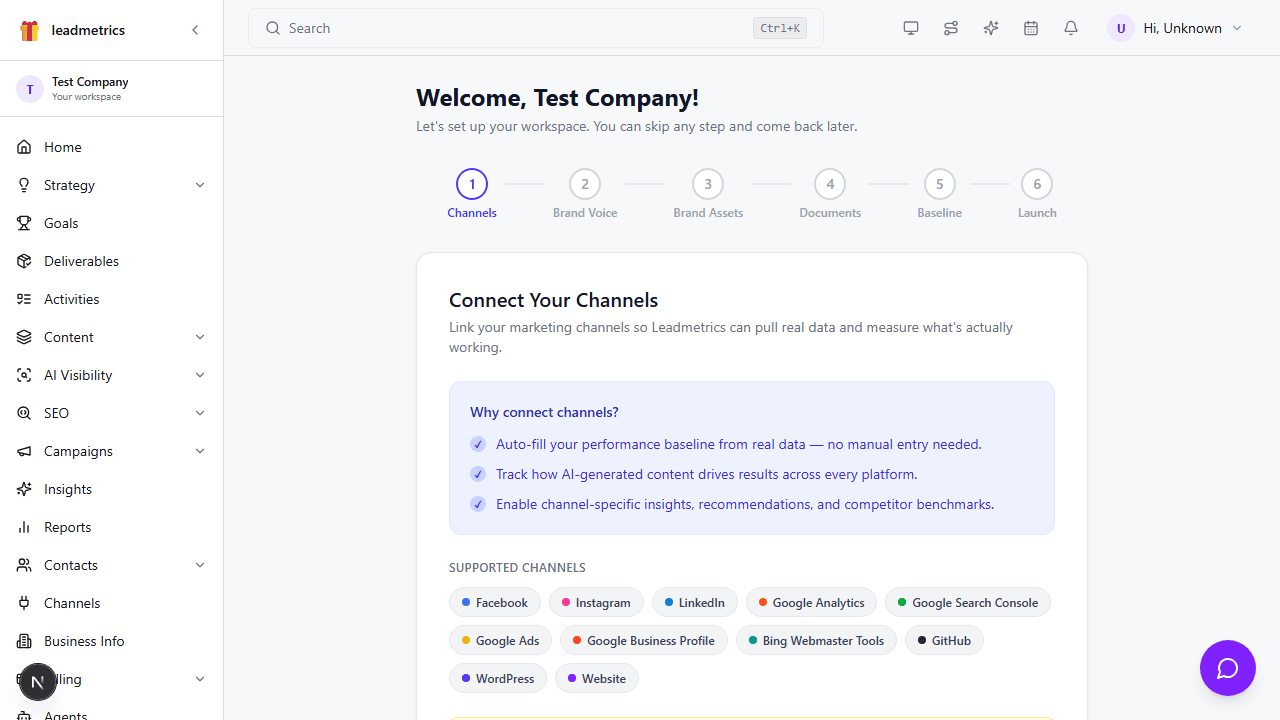
Links marketing channels so Leadmetrics can pull real performance data. Channels open in a new tab — the wizard saves state so the user can come back and click Continue.
Supported channels: Facebook, Instagram, LinkedIn, Google Analytics, Google Search Console, Google Ads, Google Business Profile, Bing Webmaster Tools, GitHub, WordPress, Website.
Step 2 — Brand Voice
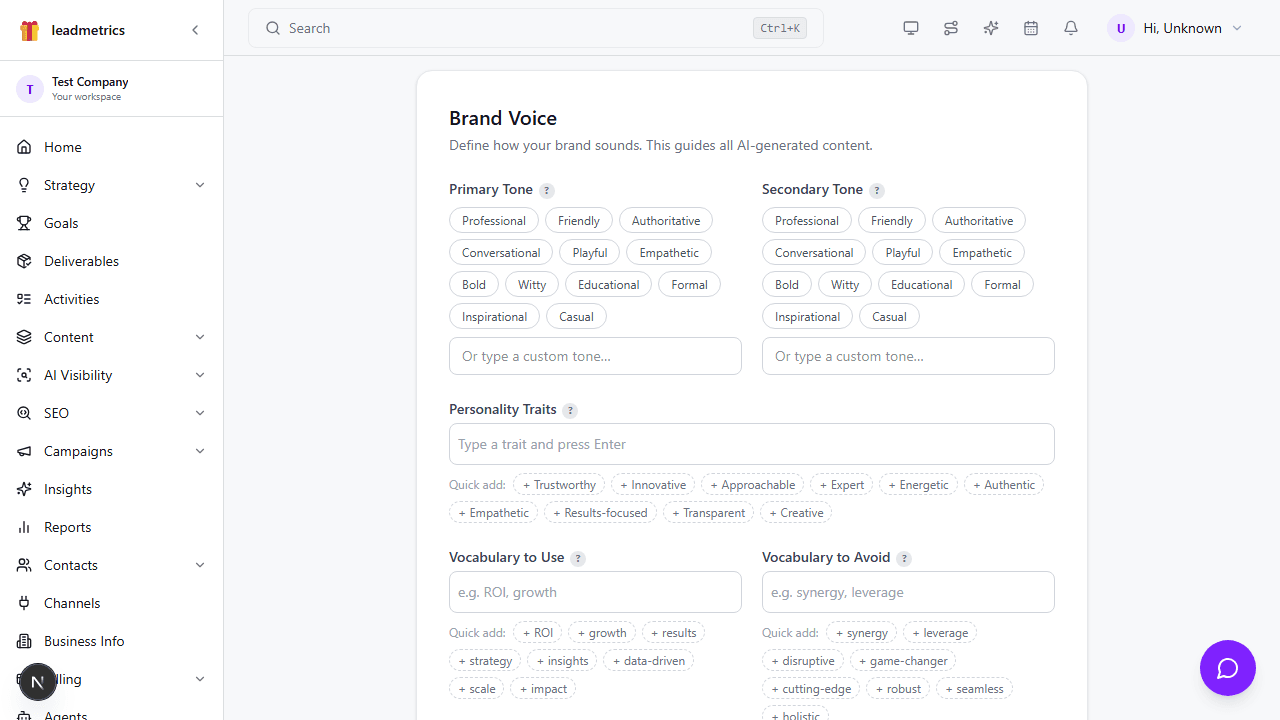
Defines how the brand sounds across all AI-generated content.
| Field | Notes |
|---|---|
| Primary Tone | Single chip (e.g. Professional, Authoritative, Casual) |
| Secondary Tone | Supporting tone (e.g. Friendly) |
| Personality Traits | Tag input — adjectives beyond tone |
| Vocabulary to Use | Preferred industry terms |
| Vocabulary to Avoid | Overused buzzwords |
| Writing Style | Conversational, Data-driven, Storytelling, Direct, etc. |
| Target Audience | Who the content is written for — role, industry, pain points |
| Example Content | Paste from best existing content — used as a style benchmark |
Saves to brand_voice table. Used in every agent prompt that generates copy.
Step 3 — Brand Assets
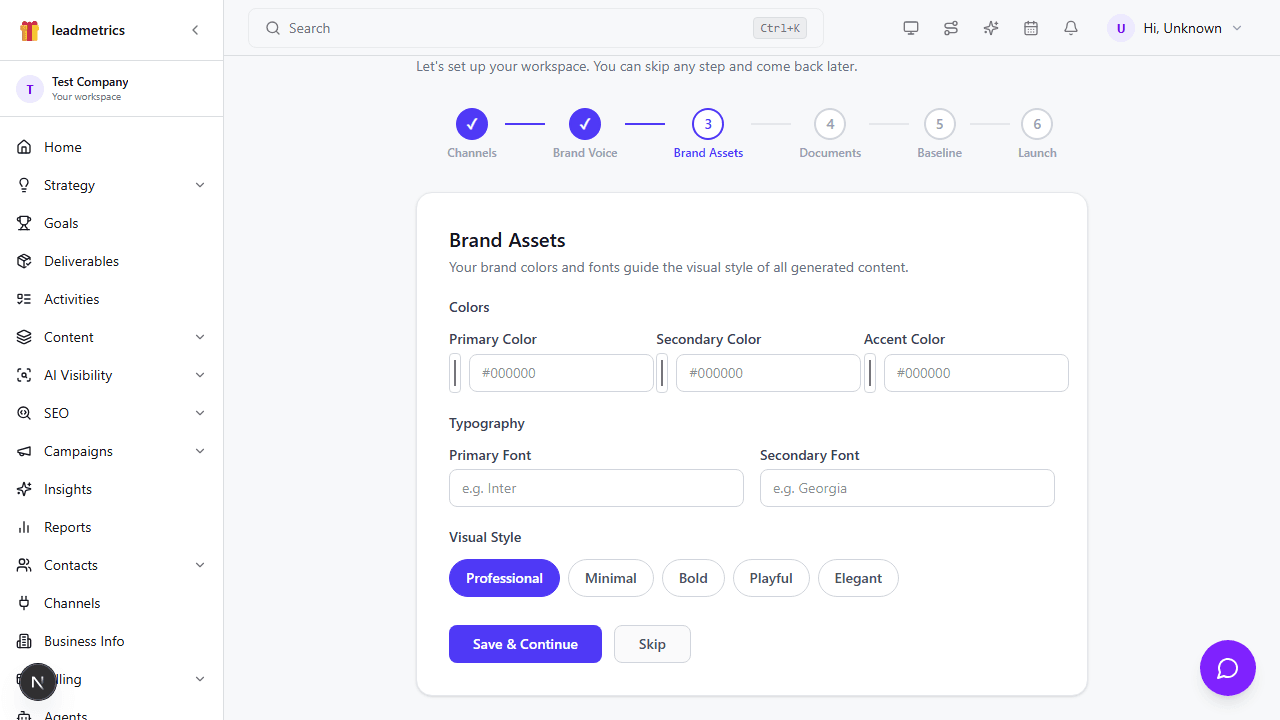
Colors, fonts, and visual style that guide AI-generated content.
| Field | Notes |
|---|---|
| Primary Color | Hex color picker + text input |
| Secondary Color | Hex color picker + text input |
| Accent Color | Hex color picker + text input |
| Primary Font | Text input (e.g. Inter) |
| Secondary Font | Text input (e.g. Georgia) |
| Visual Style | Chip selector: Professional / Minimal / Bold / Playful / Elegant |
Auto-prefill from website crawl: When the tenant provides a website URL during signup, the crawler runs extractBrandAssets() on the homepage before any DOM mutation. If brand signals are detected (confidence > 0), they are written to brand_assets — but only if primaryColor is currently null (never overwrites manual input).
Because the crawl runs in the background after signup and the wizard loads immediately, the Brand Assets step fetches the latest DB state on mount via the getBrandAssets() server action. When data is found, an indigo banner reads “Prefilled from your website — review and adjust anything that looks off.”
A “Refresh from website” button is always visible in the step header. On click:
- If brand data is already in the DB → populates the form immediately.
- If nothing in DB yet → automatically queues a fresh crawl via
POST /tenant/v1/channels/:id/webcrawl/startand shows “Crawl queued — hit Refresh again when done.”
Extraction priority (in order):
- CSS custom properties on
:root— hex,rgb(), and HSL (--primary: 239 84% 67%) formats all handled - Computed styles on all
header/navbuttons and links (scans every element, skips transparent ghost buttons) - Broader fallback: hero/banner/CTA sections,
main > divbackgrounds - Google Fonts
<link>hrefs +@importin<style>tags @font-facenames in inline<style>tags (catches Next.jsnext/fontinlined fonts)- Computed
font-familyonbody/h1(non-system fonts only)
Code: packages/agents/src/utils/brand-extractor.ts
Step 4 — Documents
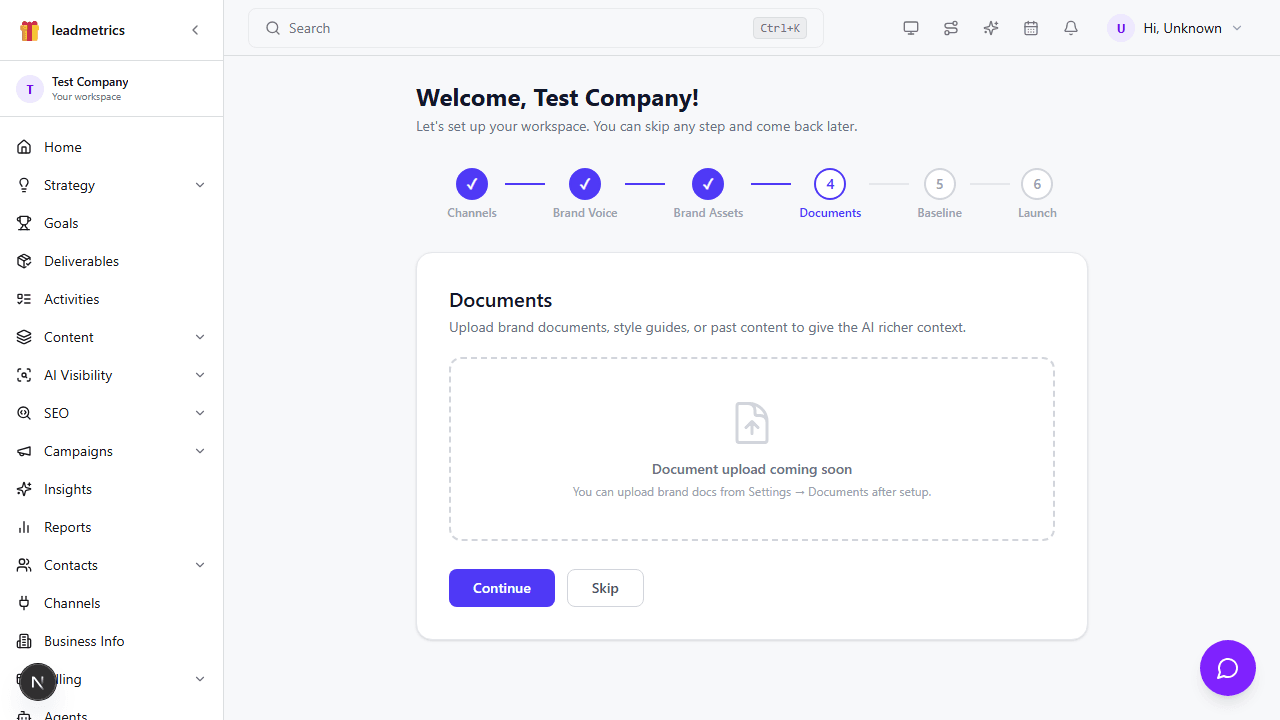
Document upload is planned but not yet built. The step shows a placeholder. Users can upload brand docs from Settings → Documents after setup.
Step 5 — Baseline (Current Performance)
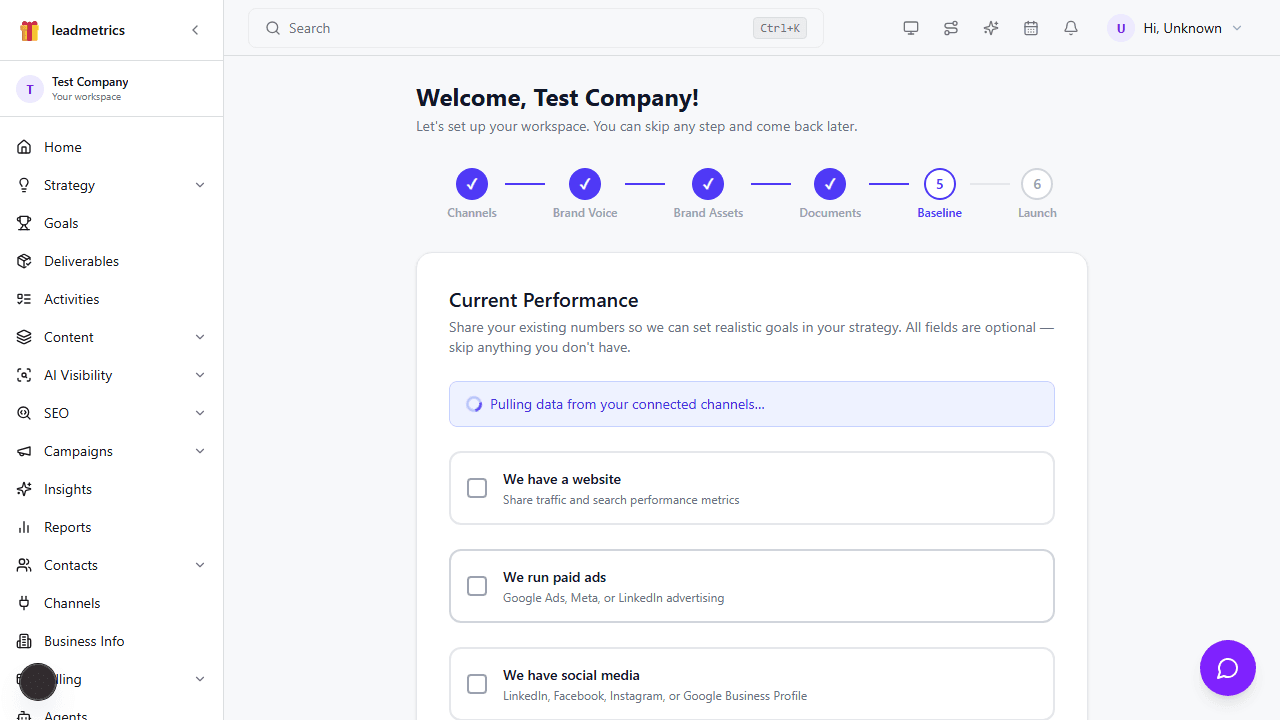
Current marketing metrics used to set realistic goals in the strategy.
Website & SEO: monthly visitors, organic clicks, avg search position, monthly leads, top keywords.
Paid Advertising: toggle + platform selection (Google Ads, Meta Ads, LinkedIn Ads) + per-platform metrics (monthly spend, CPL, monthly leads).
Social Media: toggle + platform selection (LinkedIn, Facebook, Instagram, GBP) + per-platform metrics (followers, engagement rate; GBP uses impressions + calls).
Auto-filled from connected channels — on mount, calls getBaselinePrefill() server action which reads from connected channel data. Shows a green banner listing which channels were synced, with a Refresh button. Falls back to manual entry if channels can’t be fetched.
Saves to brand_voice table (baselineData JSONB field).
Step 6 — Budget
Collects the client’s marketing budget so the strategy writer can produce a realistic Budget & Resource Allocation table.
| Field | Notes |
|---|---|
| Flexible toggle | ”I’m flexible — show me the ideal budget.” When checked, disables the amount field; the AI proposes the optimal allocation with no constraint. |
| Monthly Marketing Budget | INR amount input (₹ prefix). Hidden when flexible is on. |
| Campaign Horizon | Button group: 3 months / 6 months / 12 months. Defaults to 6. |
An amber callout explains that a budget acceptance prompt will appear on the strategy review page after generation — the client can confirm or adjust before approving.
Saves to tenant_strategy_config table: monthly_budget (null when flexible), budget_flexible, budget_horizon. The budget_confirmed flag (also on this model) is set later via the strategy review acceptance prompt.
Strategy generation modes (triggered from the strategy page, informed by this step):
- “Generate with Ideal Budget” — ignores
monthly_budget; AI proposes optimal allocation for goals. - “Generate with My Budget” — injects
monthly_budgetas a hard constraint; AI works within it and notes trade-offs.
Step 7 — Launch
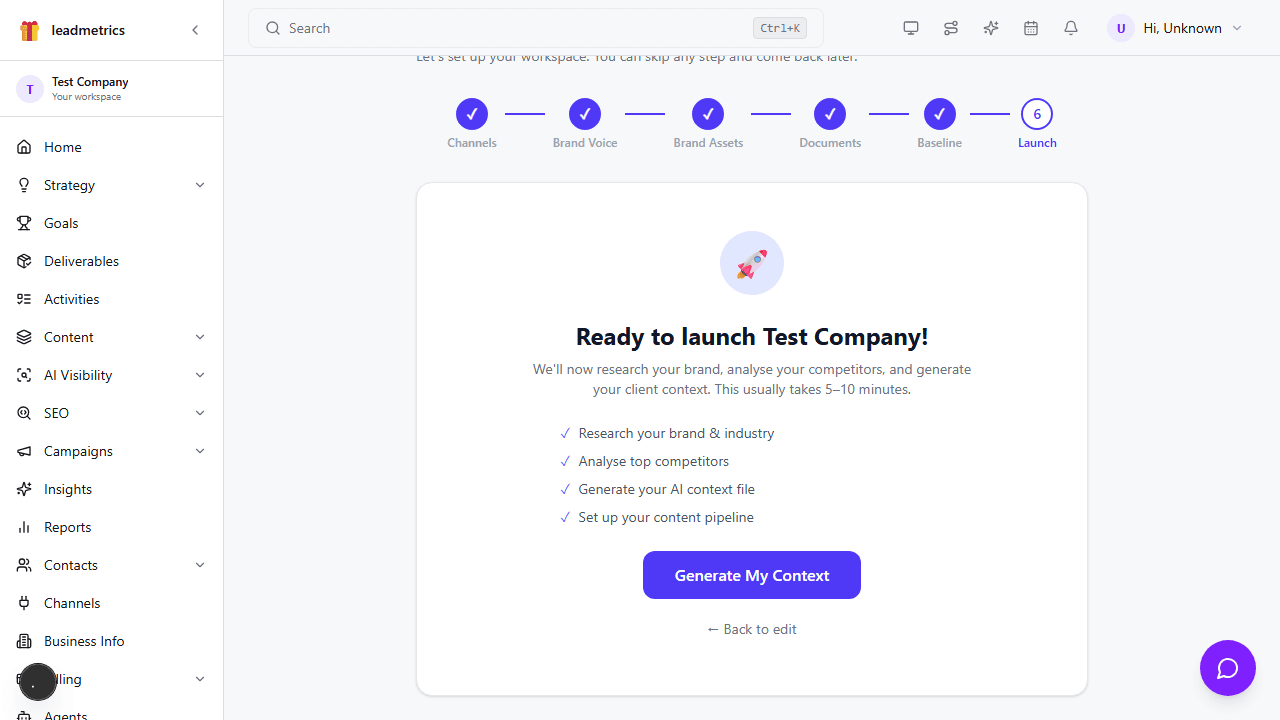
Summary screen. Clicking Generate My Context calls completeOnboarding() which:
- Sets
tenant.onboardingCompletedAt = now() - Enqueues the setup chain via BullMQ
The setup chain then runs automatically in the background.
Part 3 — Setup Chain (Background Agents)
After the wizard completes, three agents run sequentially via BullMQ:
Implemented in: packages/agents/src/workers/setup.worker.ts
| Step | Agent | Output |
|---|---|---|
| 1 | Client Researcher | Structured JSON: products, target audience, USP, brand voice, pricing, geography, key messages |
| 2 | Competitor Researcher | Structured JSON: 3–5 competitors with strengths, weaknesses, market positioning |
| 3 | Context File Writer | Markdown context file (8 sections, 400–800 words) saved to client_context table |
Status transitions: pending → generating → completed → approved
When the context-file-writer completes, a context_ready email is sent to the tenant admin. Template slug: context_ready. Variables: firstName, companyName, contextUrl, currentYear.
Approval flow
- Admin logs into dashboard → navigates to Context page
- Amber “Review and approve” banner with Approve Context button is shown
- Admin clicks Approve →
statusupdated to"approved"via server action - All agents now use this context file in every prompt
Generated context file structure
## Company Overview
## Products & Services
## Target Audience
## Brand Voice & Tone
## Competitors
## Geographic Focus
## Key Messages
## What NOT to Do
Sections with insufficient data are marked: [Requires update — visit Settings → Context]
Part 4 — Post-Onboarding
After the context file is approved:
- User lands on
/(main dashboard) - All configured agents are active
- Empty-state guidance: “Submit Your First Campaign →”
Time from registration to first campaign submission: < 10 minutes for a motivated user.